

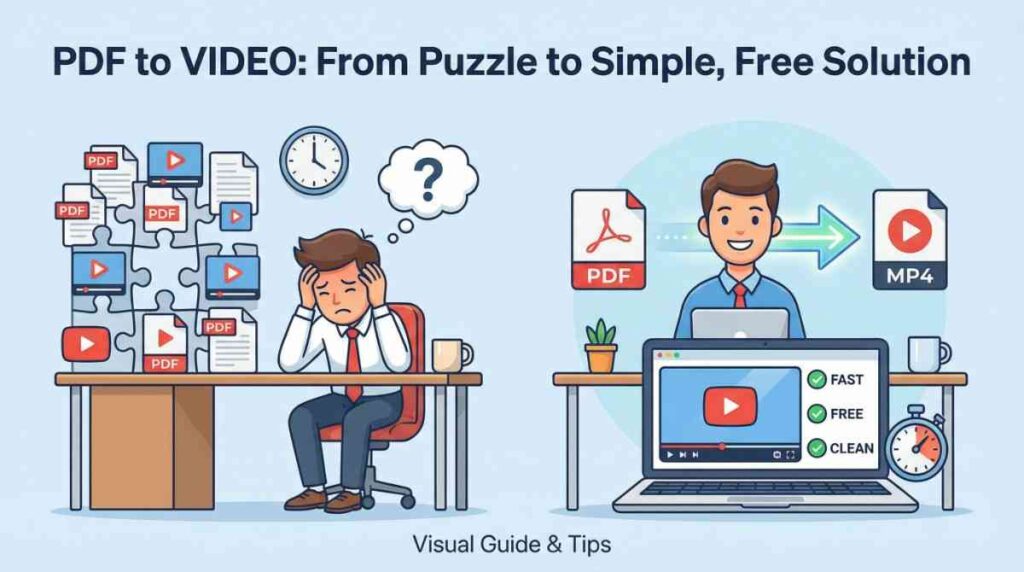
If you’ve ever tried to convert a PDF to video, you probably discovered something funny: we live in a world where AI can write essays, talk like a human, and even predict what YouTube video you’ll click next… …but turning a simple PDF into a video still feels like a puzzle.
Trust me, I’ve been there.
Last year, I needed to turn a 32-page PDF into a short MP4 video for a presentation. I thought it would take five minutes. Spoiler alert: it took me an hour, three cups of coffee, and one identity crisis.
But that was before I found tools that actually make the convert PDF to video process simple, fast, and—best of all—100% free.
In this guide, I’ll walk you through how to convert PDF to video for free, the tools I personally tested, the mistakes I made (so you don’t), and bonus tips to make your final video look 10x cleaner.
Let’s dive in.
What Does “Convert PDF to Video” Actually Mean?
Before we jump in, let’s clear up what this process really is.
When you convert a PDF to video, you’re basically turning each page of your PDF into video slides. You can add transitions, animations, background music, narration, or anything else that makes your content easier to watch.
It’s perfect if you want to:
- Create a video presentation
- Share content on YouTube
- Turn study notes into a video
- Make a scrolling PDF video for social media
- Show PDFs on screens where video works better
And since the search term “how to convert a PDF to MP4” is blowing up in 2025, you’re definitely not the only one trying to do this.
Why Turn a PDF into a Video in 2025?
Let me be honest: people don’t read PDFs anymore. People skim. People scroll. People want video.
And that’s exactly why the “Convert PDF to Video” trend exploded.
Here’s when I realized this shift: I sent a PDF to my team. No one opened it. Then I sent the same content as a 40-second video. Guess what? Instant replies.
Video is simply easier to digest, especially for:
- Teachers explaining papers
- Students turning notes into study clips
- Marketers sharing reports
- Presenters preparing slides
- YouTubers making educational content
And platforms like TikTok, YouTube Shorts, Instagram, and even LinkedIn are pushing video harder than ever.
So yes—2025 is the year PDFs evolve into videos.
Best Free Tools to Convert PDF to Video Online
I tested around 12 tools before writing this blog. Most were slow, paid, or buggy. Here are the only tools I actually recommend.
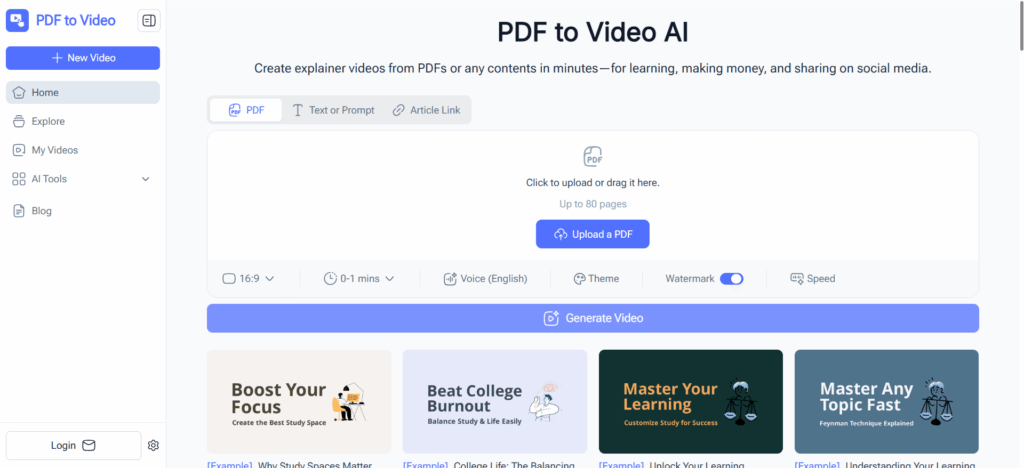
1. PDF to Video
What I love about it:
- 100% free
- Turns PDFs into MP4 in a few seconds
- Lets you adjust video duration
- Lets you choose layout size
- You can pick a theme color
- You can add a custom cover
- Exports clean MP4 video
If you want something fast and clean, this is the winner.
2. Canva (Good for Fancy Slides)
Great for aesthetic videos, but:
- Slower
- Requires more manual work
- Exporting can take time Still a solid option if you love customizing.
3. PowerPoint + Recorder (Classic but Clunky)
You can import your PDF into PPT and record a video. But honestly? It’s too much work.
4. CapCut (For Social Media)
Import PDF → turn pages into clips → add music. Fun if you want a TikTok feel.
How to Convert PDF to Video for Free (Step-by-Step Tutorial)
Alright—here’s the part you came for.
I’ll show you the exact steps I use when I convert PDF to video. This method works even if your PDF is long, full of images, or looks like it was designed by a sleepy intern at 2AM.
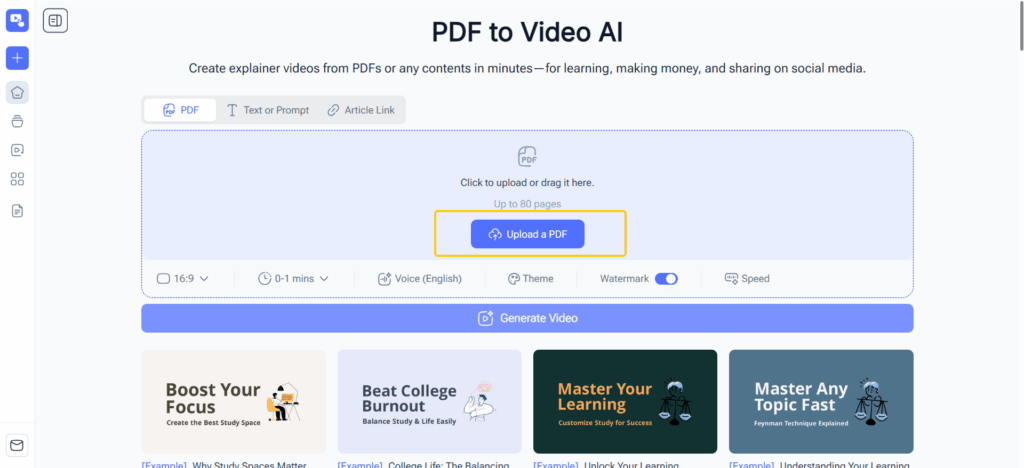
Step 1: Upload Your PDF
Open your PDF-to-video tool, click Upload, and drop in your file.
My tips:
- Use a PDF under 50MB for faster processing
- Make sure the text is readable
- Avoid super wide margins
If your PDF looks tiny on a page, your video will too.
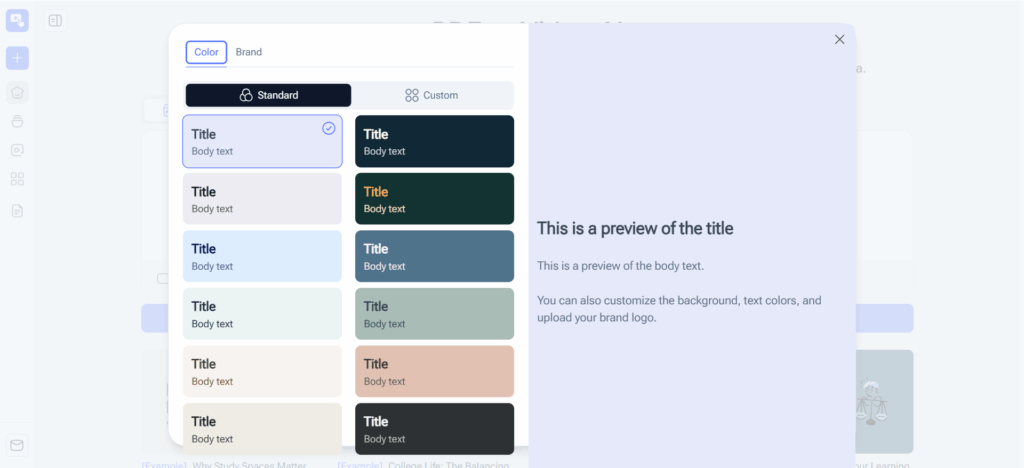
Step 2: Choose Layout, Size, and Timing
Most tools let you pick:
- Video size (horizontal, vertical, square)
- Horizontal = YouTube
- Vertical = TikTok/Reels
- Square = Instagram posts
- Duration per page
- 3 sec/page is the sweet spot
- Theme color
- Choose something matching the PDF
If you’re making a presentation-style video, I recommend horizontal 1080p.
If you’re making a short social video, use vertical 1080x1920.
Step 3: Add Audio, Transitions, or Animations (Optional)
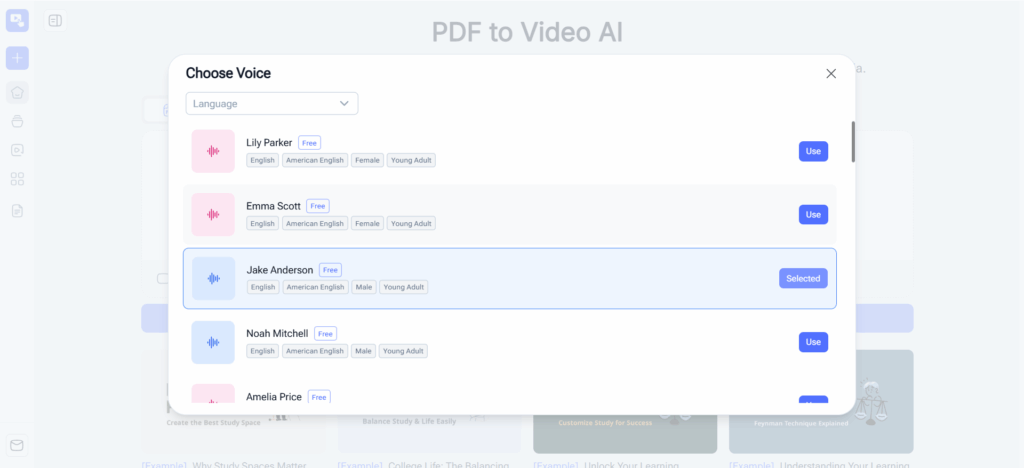
If you want your PDF-to-video result to feel more “alive,” add:
- Subtle page-flip animations
- Background music
- Voice narration
- Slide transitions
- Simple zoom-in effects
But don’t overdo it. Your viewer is here for the content, not a fireworks show.
Step 4: Generate and Export as MP4 Video
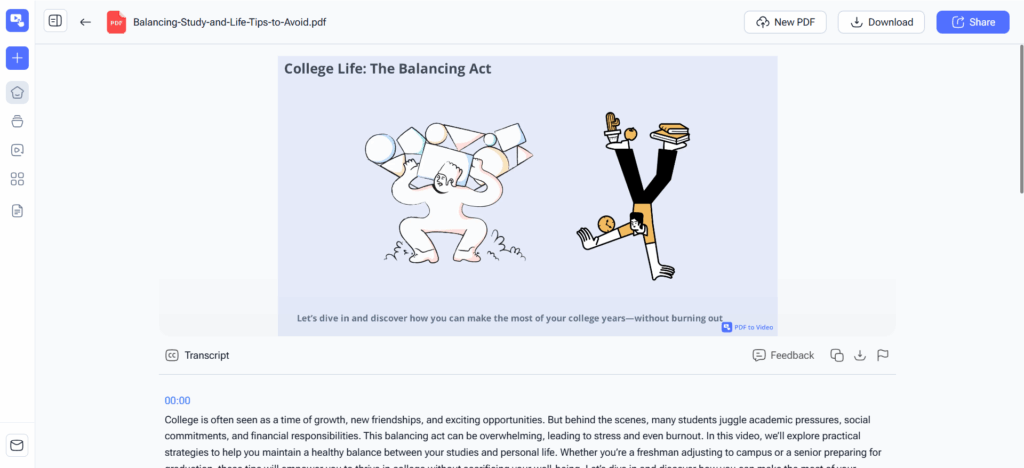
Click Convert or Export, then wait a few seconds.
Your tool will:
- Render each page
- Apply transitions
- Stitch everything into MP4
Download your final video—congrats! You just learned how to convert PDF to MP4 for free in the easiest way possible.
Convert PDF to Video on Windows & Mac
Different users, same mission.
On Windows
- Use PDF to Video AI or Canva in your browser
- Or PowerPoint export → video
On Mac
- Same tools
- And you can also use Preview + Keynote → export as video
But honestly, online tools are faster and require zero setup.
How to Convert a PDF to Video on Mobile (iPhone & Android)
One of the best things about 2025 is that converting PDFs to videos isn’t just for desktop users anymore. I remember being stuck in a café last month with a client meeting coming up, and I had to turn a 25-page PDF into a video—without my laptop. Yes, mobile saved me.
Here’s how to do it like a pro.
On iPhone
- Open Safari and go to your favorite PDF-to-video tool.
- Upload your PDF from Files, iCloud, or even your email.
- Choose your video format—vertical for TikTok, horizontal for YouTube, square for Instagram.
- Set the duration per page (I usually go 3–4 seconds for readability).
- Pick a theme color that matches your PDF or brand.
- Optionally, add background music or voice narration.
- Export as MP4 and save to your camera roll.
Pro tip: I always preview the first few pages on mobile before exporting the whole video. It helps catch text that might be too small or blurry. Nothing is more frustrating than finishing a 20-page video and realizing the text is unreadable on phones.
On Android
Android users have it slightly easier thanks to flexible file systems:
- Open Chrome or your preferred browser.
- Go to the PDF-to-video converter website.
- Upload your PDF.
- Pick the video layout, duration per page, and theme.
- Optionally, add audio or transitions.
- Tap Convert and download the MP4.
I tested a 40-page PDF on my Galaxy recently—it took under 2 minutes to process. And the video looked clean on both my phone and my laptop.
Mobile Conversion Tips
- Use vertical format for social media posts; it keeps viewers engaged.
- Keep each slide duration at 2–4 seconds; too fast and viewers can’t read.
- Avoid cluttered PDFs; simplify each page for better visual impact.
- Zoom in on small text before conversion; mobile screens are tiny.
Honestly, after doing this multiple times, I’ve realized mobile PDF-to-video conversion is not just convenient—it’s a lifesaver for last-minute presentations or social content creation.
Advanced Tips to Make Your PDF-to-Video Output Look Professional
I’ve converted dozens of PDFs to videos, and here’s what separates a good video from a “meh” video:
Clean and Simplify Your PDF
Before converting, fix your PDF layout. Remove unnecessary images, align text properly, and make sure images aren’t blurry. A clean PDF directly translates into a polished video.
I learned this the hard way—my first test video looked like a college project from 2005. Not pretty.
Optimize Text and Layout for Video
Videos aren’t meant to show walls of text. Break paragraphs into digestible slides. Use large fonts that are readable on small screens. Think like a social media content creator: slide-friendly content = more engagement.
Add a Compelling Cover Page
Even a 15-second video benefits from a cover page. Include:
- Title
- Subtitle or tagline
- Your logo or name
- A simple background
I usually spend 2–3 minutes designing a cover. It makes a huge difference. People judge videos in the first 3 seconds. Don’t lose them before they start reading.
Keep Transitions and Animations Simple
Fancy transitions look tempting, but simple fades or slide-ins usually look more professional. I once went overboard with spinning slides—it gave me a headache, and viewers complained. Lesson learned.
Match Colors and Fonts
Maintain consistency. If your PDF is primarily blue and white, don’t choose a bright yellow theme for the video. Consistent fonts, colors, and layouts make the video feel intentional and professional.
Add Background Music or Narration
Soft music or voice-over narration makes your video engaging. I often narrate PDFs I turn into videos—it makes the content feel alive. Just make sure the audio isn’t overpowering.
Export in MP4 Format
MP4 is universally compatible. You can share it on YouTube, Instagram, TikTok, LinkedIn, Windows, Mac, iOS, Android—you name it. This is why most people searching “how to convert PDF to MP4” end up choosing MP4 as the default output.
Common Problems When Converting PDF to Video & How to Fix Them
Even the best tools can run into issues. Here’s a breakdown from my personal experience:
Blurry Video Output
Solution: Check your PDF resolution. Export your PDF at 300 DPI before conversion. High-quality PDFs = high-quality videos.
Text Too Small
Solution: Zoom in on critical sections before converting. Tiny text looks like ants on mobile screens—hardly readable.
Video Plays Too Fast
Adjust the duration per page. I recommend 3–4 seconds for dense slides, 2 seconds for lighter content.
Wrong Video Dimensions
Solution: Match the video layout to the platform:
- Horizontal → YouTube
- Vertical → TikTok/Reels
- Square → Instagram
PDF Won’t Upload
Solution: Compress the PDF or remove unnecessary elements. Large scanned PDFs often fail online.
Audio Doesn’t Sync
Solution: Keep background music short or narrate per slide. Long audio tracks often desync when the video is auto-generated.
FAQ: Convert PDF to Video for Free
Here are the most common questions I get:
Q1: Can I really convert a PDF to video for free? Yes. Several online tools, including PDF to Video, allow free PDF-to-video conversion with no sign-up.
Q2: What’s the best free PDF-to-video converter? PDF to Video is my personal favorite—fast, simple, and free.
Q3: Can I add audio? Absolutely. Background music or voice narration works perfectly.
Q4: Does it work on mobile? Yes, both iPhone and Android are fully supported.
Q5: How long does it take? For a 20–30 page PDF, online tools usually take 1–3 minutes.
Q6: Can I convert PDFs with lots of images? Yes. Most modern tools handle images well, but large image-heavy PDFs may take longer.
Conclusion
After converting dozens of PDFs myself, here’s my take: the process is easier than ever, even on mobile, and free tools make it accessible to everyone.
The results? Videos that are engaging, professional-looking, and shareable. Perfect for presentations, social media, or study content.
Honestly, once I started converting PDFs to videos regularly, I noticed a big difference. People actually watched the content instead of skimming PDFs. Engagement went up. Presentations looked polished. And creating social clips became painless.
So if you’ve been wondering how to convert a PDF to video, stop hesitating. Grab a free tool, follow these steps, and make your PDFs come alive in 2025.