

PDF files are everywhere. Reports, slides, ebooks, training materials, marketing decks—you name it. But in 2026, PDFs alone are no longer enough. People scroll fast, skim quickly, and expect content to move, speak, and explain itself.
That’s why more creators, marketers, educators, and businesses are looking for better ways to turn PDF to video.
A well-made PDF to video conversion can transform static pages into engaging visual stories. Instead of asking your audience to read 30 pages, you can show them a 3-minute video that explains everything clearly.
In this guide, we’ll explore the top 7 tools to turn PDF into video in 2026, compare their strengths, and help you choose the right one based on your real needs—not marketing hype.
Why Turn PDF into Video in 2026?
Turning PDFs into videos isn’t just a trend. It’s a response to how people consume content today.
PDFs Are Hard to Engage With
Let’s be honest. Most PDFs are skimmed, not read. Long paragraphs, small text, and static layouts make it easy for readers to lose interest. Even beautifully designed PDFs struggle to hold attention, especially on mobile devices.
When you convert a PDF to video, the content becomes easier to follow. Motion, visuals, and audio guide the viewer instead of forcing them to read every line.
Video Content Performs Better Everywhere
Videos outperform PDFs across almost every platform:
- Higher engagement on websites
- Better retention in online courses
- More shares on social media
- Stronger conversions in marketing campaigns
If your goal is to explain, teach, or persuade, video simply works better. That’s why many teams now turn PDFs into videos for presentations, product demos, onboarding, and training.
Turning PDFs into Videos Saves Time
This might sound counterintuitive, but the right tool can actually save time.
Instead of redesigning slides, recording screens, or editing manually, modern AI tools can turn PDFs into videos automatically. Upload a file, choose settings, and let the tool do the heavy lifting.
What Makes a Good Tool to Turn PDF into Video?
Not all PDF to video tools are created equal. Some are fast but limited. Others are powerful but frustrating to use. Before choosing one, it helps to know what really matters.
Easy PDF Upload and Conversion
A good tool should let you upload a PDF and start converting immediately. No complicated setup, no confusing workflows. Ideally, you should be able to turn a PDF into video in just a few clicks.
Control Over Video Length and Layout
PDFs vary wildly in length. Some are 5 pages. Others are 50. A solid PDF to video converter lets you control pacing, scene duration, and layout so the final video doesn’t feel rushed or painfully slow.
AI Voice, Text, and Visual Support
In 2026, AI is no longer optional. The best tools use AI to:
- Generate natural voiceovers
- Summarize or adapt PDF text
- Match visuals to content
This is especially important if you want to turn PDFs into videos without manually editing every slide.
Export Quality and Format Options
Your final video should look professional. Whether you need MP4 for social media, HD for presentations, or vertical video for mobile platforms, export options matter more than people realize.
Top 7 Tools to Turn PDF into Video in 2026
Below are the most popular and practical tools this year. Each one shines in different scenarios, so the “best” choice depends on how you plan to use it.
1. PDFtoVideo.ai – Fast AI Tool to Turn PDF into Video
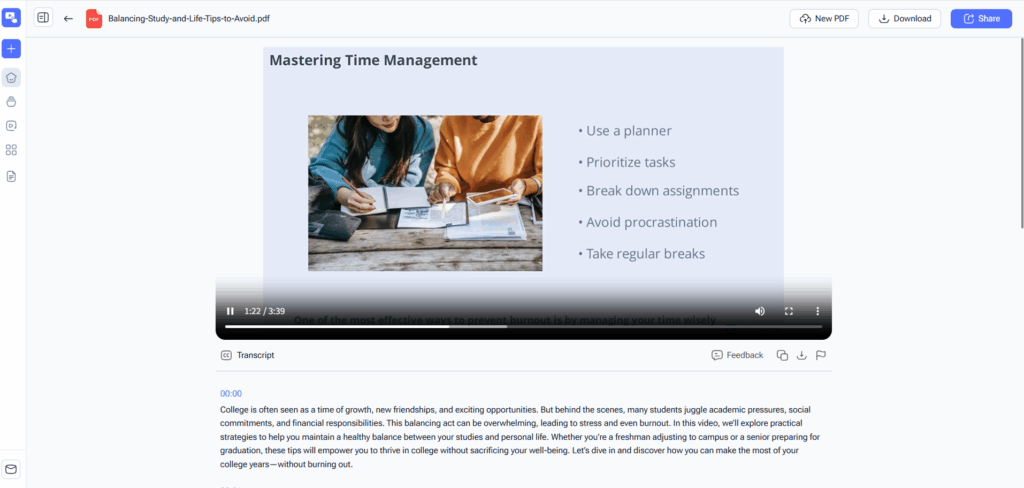
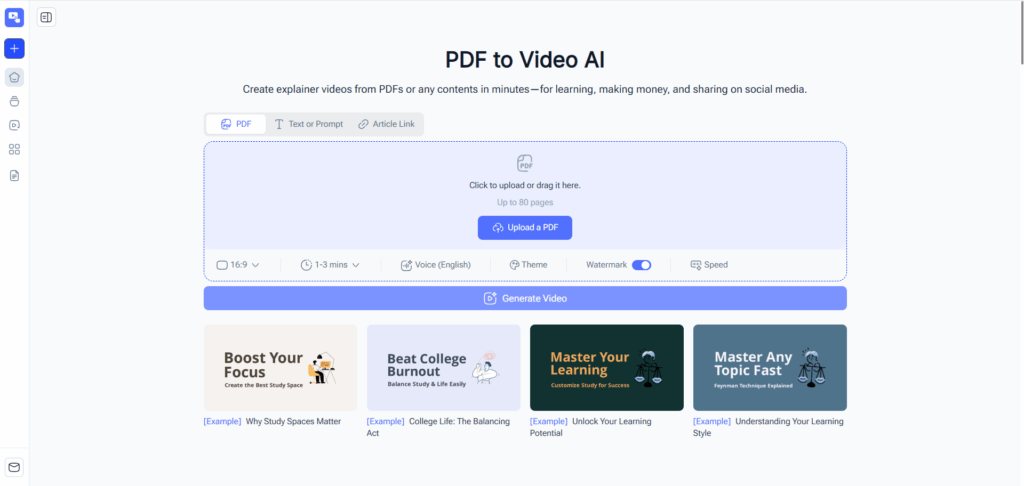
PDFtoVideo.ai is designed specifically to turn PDF into video quickly and easily, without overwhelming users with unnecessary features.
You upload your PDF, customize basic settings like video size, duration, theme color, and cover image, and let AI generate a video that follows your content naturally. It’s especially useful if you want clean, professional results without spending hours editing.
Best for: Business users, educators, marketers, and anyone who wants fast PDF to video conversion
Key features:
- AI-powered PDF to video conversion
- Custom video size and duration
- Theme color and cover selection
- Clean output suitable for presentations and sharing
Pros:
- Very easy to use
- Fast processing
- No design or video editing skills required
Cons:
- Less manual animation control compared to advanced editors
If your main goal is to convert PDF to video online with minimal effort, this is one of the most practical tools available in 2026.
2. Canva – Turn PDF into Video with Visual Templates
Canva isn’t a dedicated PDF to video tool, but many users rely on it to turn PDFs into videos using templates and animations.
You can import a PDF, split pages into slides, and animate them with transitions. It works well for social content and marketing visuals, though it requires more manual work than AI-based tools.
Best for: Designers and marketers who want visual control
Pros:
- Strong design templates
- Flexible animations
- Good for branded content
Cons:
- Manual setup
- Not optimized for long PDFs
Canva is a solid choice if you care more about design than speed and don’t mind spending time adjusting layouts.

3. Vidnoz AI – One-Click PDF to Video with Avatars and Music
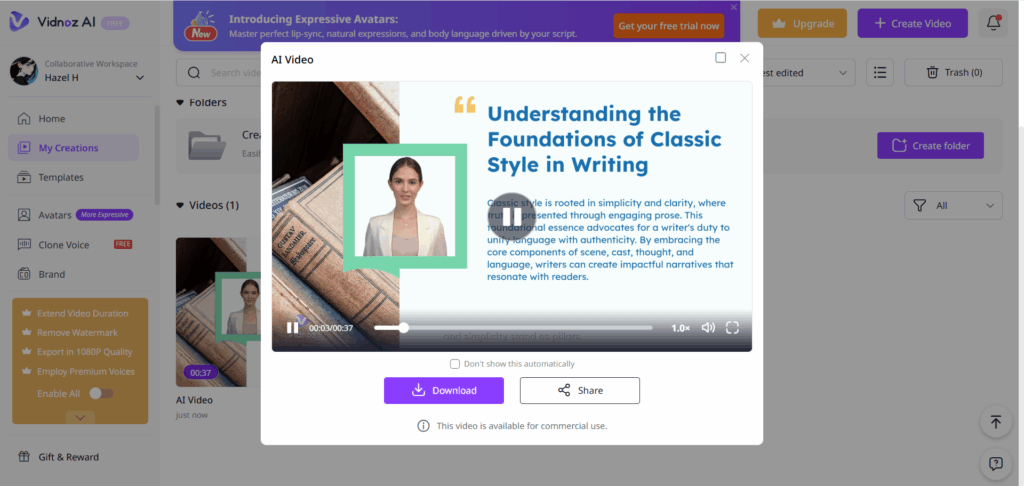
Vidnoz AI is designed for users who want to turn PDF into video with minimal effort. The platform focuses on automation, making it possible to convert a PDF into a complete video with avatars, text, and background music in just one click.
After uploading a PDF, Vidnoz AI extracts the content and automatically generates scenes. You can choose AI avatars to present the information, add voice narration, and apply background music to make the video feel more engaging and polished.
This approach works especially well for users who want their PDF videos to feel more human and presentation-like, without manually recording voiceovers or appearing on camera.
Best for: Beginners, educators, internal training, and quick explainer videos
Pros:
- One-click PDF to video conversion
- Built-in AI avatars and voiceovers
- No camera or recording required
- Easy for non-technical users
Cons:
- Limited control over detailed layout
- Less suitable for highly technical or design-heavy PDFs
If you’re looking for a fast way to convert PDF to video using AI avatars, Vidnoz AI is a practical choice in 2026, especially for simple presentations and instructional content.
4. Synthesia – Turn PDFs into Videos with AI Avatars
Synthesia takes a different approach. Instead of focusing on slides, it lets you turn PDF content into videos with AI presenters.
This can work well for corporate training or internal communication, where a talking avatar adds a human touch.
Best for: Corporate training and internal videos
Pros:
- AI avatars and voiceovers
- Professional tone
Cons:
- Expensive
- Overkill for simple PDF to video needs
5. Animoto – Simple Way to Turn PDF into Video
Animoto is a straightforward video creation tool that works well if your PDF content is already well-structured and visual. You can turn PDF pages into scenes, add music, text overlays, and simple transitions, then export a polished video.
It doesn’t rely heavily on AI, but that can be a plus if you want predictable results and manual control.
Best for: Small teams, simple presentations, and promotional videos
Pros:
- Very easy to learn
- Clean, professional output
- Good for short PDF-based videos
Cons:
- Limited automation
- Less suitable for long or complex PDFs
If your goal is to turn a short PDF into a clean video quickly, Animoto does the job without a steep learning curve.
6. VEED – Online PDF to Video Converter with Editing Tools
VEED positions itself as an all-in-one online video editor. You can upload a PDF, convert pages into visual scenes, and then edit them with text, subtitles, and basic animations.
This tool is helpful when you want to tweak the video manually after converting the PDF.
Best for: Creators who want more editing control after conversion
Pros:
- Browser-based
- Built-in subtitles and captions
- Flexible editing tools
Cons:
- Manual adjustments required
- Can feel slow with large PDFs
VEED is useful if you want to convert PDF to video online and then fine-tune the result without switching tools.
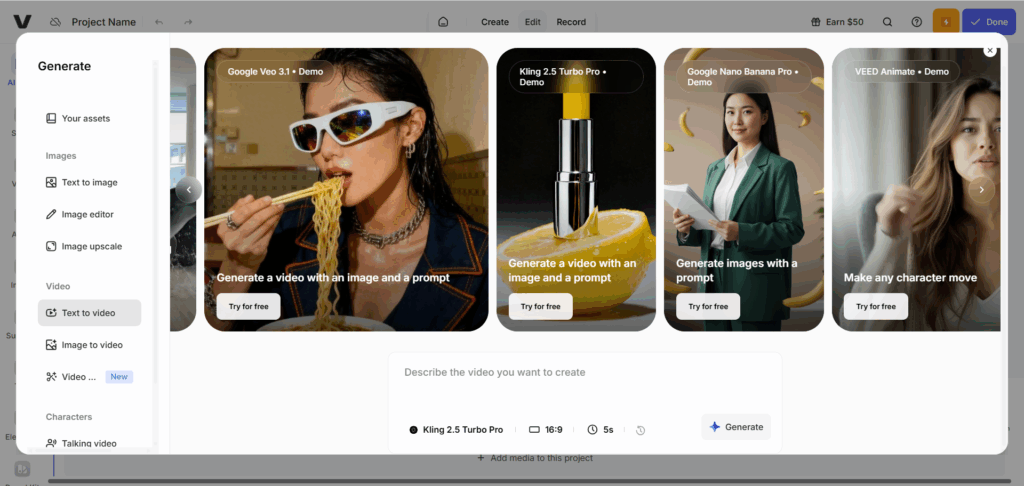
7. Visla – Turn PDFs into Reels with AI Scenes and Narration
Visla is becoming a popular choice for users who want to turn PDFs into short, engaging videos without manually designing every scene. Unlike traditional slide-based tools, Visla focuses on AI-driven storytelling.
When you upload a PDF, Visla automatically extracts key content, breaks it into scenes, and generates a video structure that feels closer to a reel or explainer video rather than a static presentation. AI narration and visual pacing help the video flow naturally.
This makes Visla especially appealing for users who want their PDF content to feel more dynamic and modern.
Best for: Marketing teams, content creators, and social-ready PDF videos
Key features:
- Converts PDFs into short video reels
- AI-generated scenes and narration
- Automatic content extraction
- Designed for fast, engaging video formats
Pros:
- Strong AI automation
- Good pacing and scene transitions
- Ideal for repurposing PDF content into videos
Cons:
- Less control over detailed slide-level layout
- Not ideal for long, highly structured documents
If your goal is to turn a PDF into a video that feels modern and watchable, rather than a traditional slide export, Visla is a strong alternative in 2026.
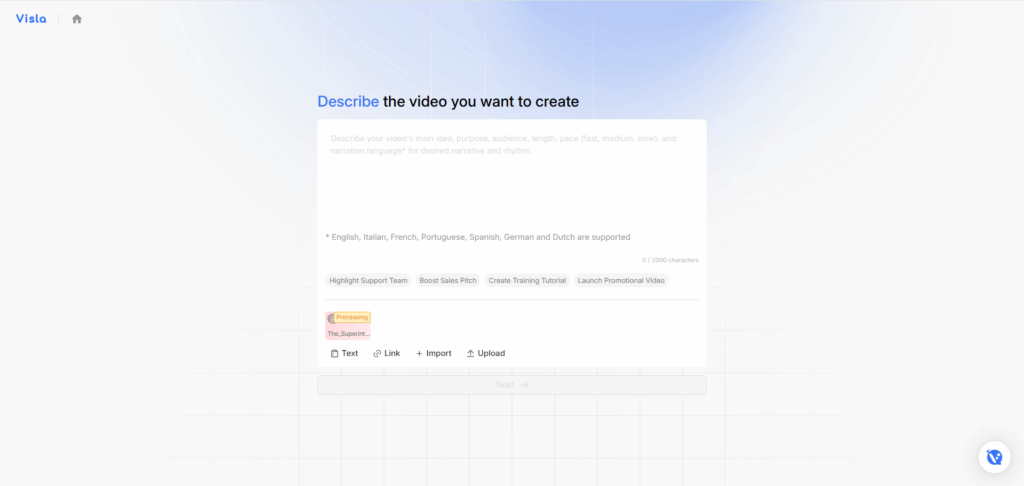
PDF to Video Tools Comparison (Quick Overview)
When choosing a tool to turn PDF into video, think about how often you’ll use it and how much time you want to spend.
Some tools prioritize speed and automation. Others focus on creative control. The best PDF to video converter is the one that fits your workflow, not the one with the longest feature list.
For fast, repeatable results, AI-based tools usually win. For design-heavy projects, manual tools may be worth the extra effort.
How to Turn PDF into Video Step by Step
If you’ve never done this before, the process is simpler than you might expect.
Upload Your PDF File
Start by uploading your PDF to a tool that supports PDF to video conversion. Make sure the file is readable and well-organized. Clean PDFs always produce better videos.
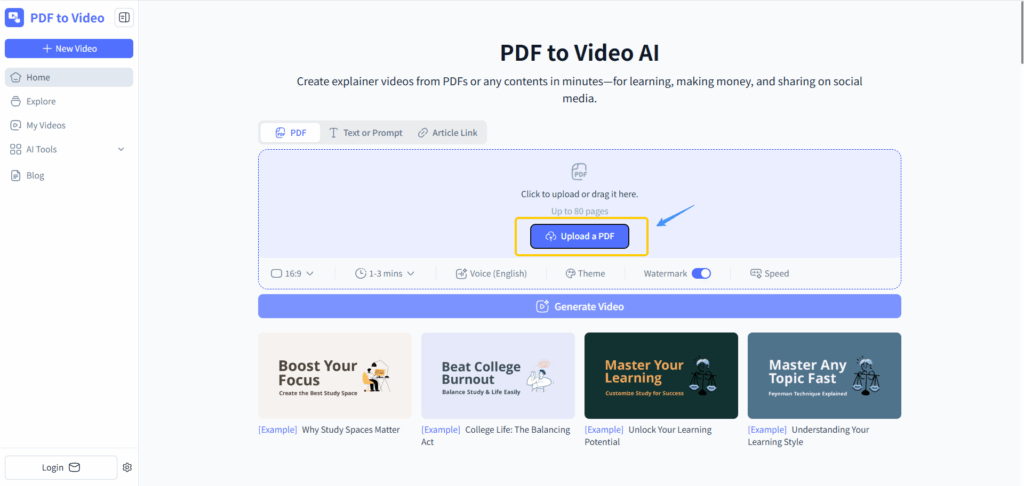
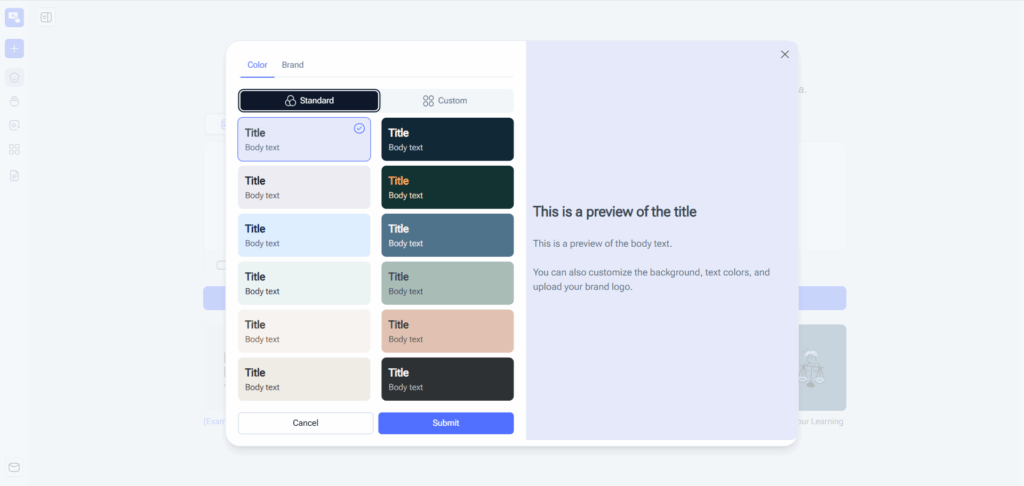
Customize Video Settings
Choose your video size, duration, and layout. Some tools let you adjust theme colors, fonts, or add a cover image. These small choices make the final video feel intentional rather than auto-generated.
Generate and Download the Video
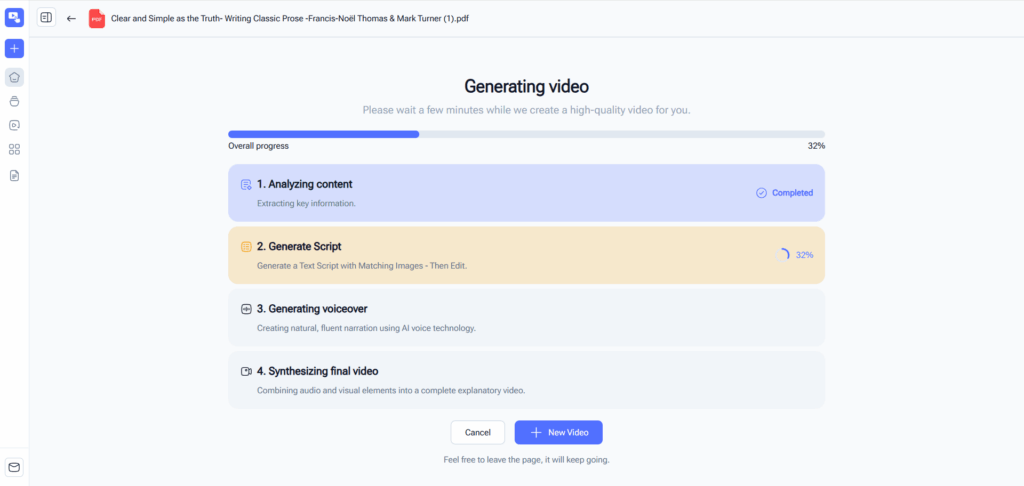
Once everything looks right, generate the video. AI-powered tools can turn PDFs into videos in minutes. After that, download the video and share it wherever you need.
When Should You Turn a PDF into a Video?
Turning a PDF into a video isn’t always necessary. But in the right situations, it can make a huge difference.
Business Presentations
Executives and clients don’t want to read long documents. A short video based on a PDF presentation can communicate the same message faster and more clearly.
Marketing and Social Media
PDFs rarely perform well on social platforms. Videos do. Converting a PDF into a video helps your content reach a wider audience.
Online Courses and Tutorials
Educational PDFs are useful, but videos explain concepts better. Many educators now turn PDFs into videos to support different learning styles.
FAQs About Turning PDF into Video
Can I turn a PDF into a video for free?
Some tools offer free trials or limited exports. For regular use, paid plans usually provide better quality and fewer restrictions.
What is the best tool to turn PDF into video in 2026?
The best tool depends on your needs. If speed and simplicity matter most, AI tools like PDFtoVideo.ai are often the best choice.
Does turning a PDF into video reduce quality?
Not if the tool handles layouts and text properly. High-quality PDF to video converters preserve clarity and structure.
How long does it take to convert a PDF to video?
With modern AI tools, it usually takes just a few minutes, even for longer PDFs.
Conclusion
In 2026, knowing how to turn PDF into video is a valuable skill. Whether you’re creating training materials, marketing content, or educational resources, video helps your message land.
The right tool should save time, not add complexity. Focus on clarity, speed, and results. Once you find a workflow that works, turning PDF to Video becomes a natural part of how you share information.
If you regularly work with PDFs and want them to reach more people, converting them into videos is no longer optional. It’s the smart next step.