
What you can control — before generating
Everything happens in the Studio panel, via the pencil icon on the Video Overview tile:
- Format — Explainer (full walkthrough), Brief (short recap), Cinematic (story-style), and Short (roughly 60 seconds, 9:16 vertical, added in July 2026)
- Language — 80+ for standard Video Overviews. Cinematic is English-only.
- Visual style — Classic, Whiteboard, Watercolor, Anime, Papercraft, Retro Print, Heritage, or auto-selected
- A custom instruction — e.g. "Focus only on the cost analysis sections" or "Assume the viewer is new to the topic"
Cinematic has extra gates: it requires a Google AI Ultra subscription and is limited to users 18 and over.
These controls are real and worth using well. A specific instruction produces a meaningfully better first result than no instruction. But note what they all have in common — they're inputs to a generation, not edits to an output.
What you can't do — after generating
- Edit the narration script
- Fix one incorrect sentence without regenerating everything
- Reorder, cut, or add a scene
- Change the voice
- Export a project file — there isn't one
Google is straightforward about the risk that creates. Its own documentation notes that the generated voices and visuals may contain inaccuracies or audio glitches, and that generation can take more than 30 minutes.
Put those two facts side by side and the problem is clear. A tool that is explicitly allowed to be wrong, and takes up to half an hour per attempt, offers no way to correct an error except another half-hour attempt.
Worth being fair here: Google clearly understands that editability matters. Slide Decks in the same Studio panel can be exported to PPTX with editable slides. That capability just hasn't reached video yet.
Regenerating is not editing
This distinction gets blurred a lot, and it's the crux of the whole problem.
Editing is deterministic. You change one thing and everything else stays put. Ten edits converge on the version you wanted.
Regenerating is a re-roll. You revise the prompt and the model rebuilds from scratch — including all the parts that were already fine. The sentence you were trying to fix might come out right this time. The three minutes before it might not. You aren't converging on a result; you're sampling from a distribution.
This is why "just regenerate with a better prompt" feels so unproductive on anything longer than about ninety seconds. The longer the video, the lower the probability that any single re-roll is simultaneously better on every dimension than the last one. On a six-minute explainer, you can easily spend two hours and end up with a version you like less than your second attempt.
Workarounds people actually use
If you're committed to NotebookLM, three things genuinely help:
- Fix it upstream, in the sources. The output is grounded in what you upload. If the video keeps emphasizing the wrong thing, remove or trim the source that's pulling it there. This is the highest-leverage move and the most overlooked.
- Write the instruction like a brief, not a wish. Name the sections to include, the sections to skip, and the audience. Vague instructions produce vague videos.
- Generate short, then stitch. Multiple Brief-format videos on narrow topics are far more controllable than one long Explainer — and if one is wrong, you only re-roll that one.
What doesn't work: downloading the MP4 and fixing it in a video editor. You can re-cut and re-caption, but the narration is baked into the audio track. Fixing a spoken error means replacing the voiceover entirely, at which point you've left the tool behind.
One thing worth knowing before you spend an afternoon rewriting prompts: if your source is a PDF, a surprising share of these errors originate at the parsing stage, not the generation stage. Multi-column layouts get read out of order and page footers get pulled in as body text — no prompt fixes that. We break this down in more detail in our guide to turning a PDF into a video.
Where each approach fits
Last verified: August 21, 2026
| NotebookLM / Gemini Notebook | One-click document→video tools | Checkpointed workflow | |
| Control before generating | Format, language, style, focus prompt | Varies by tool | Full outline + script |
| Edit script after generating | ✗ | Sometimes, via timeline editor | ✓ |
| Fix one sentence without a full regenerate | ✗ | Varies | ✓ |
| Cost of previewing | A full generation | Usually consumes credits | Free — browser preview |
| Verify output against the source | Manual, by watching | Manual, by watching | Side-by-side at outline stage |
| Best for | Fast personal comprehension | Quick internal drafts | Anything published externally |
Here's the honest read: if the video is for you, none of this matters. You're trying to get through a dense paper before a meeting, the video is a comprehension aid, and it's free and very good at that. The absence of editing costs you nothing.
The calculus inverts the moment the video goes to someone else — customers, students, employees, regulators. Then every row above becomes a blocker, and you need a workflow where mistakes get caught while they're still text.
If you need the second column
We build pdftovideo.ai, an AI explainer video maker designed around the workflow above. You upload a PDF, some prompts, or URL, and the first thing you get back is an editable outline — section order, what each part covers, how long it runs. Wrong emphasis, a missing chapter, a page footer that got mistaken for a topic: you fix it there, as text, in seconds.
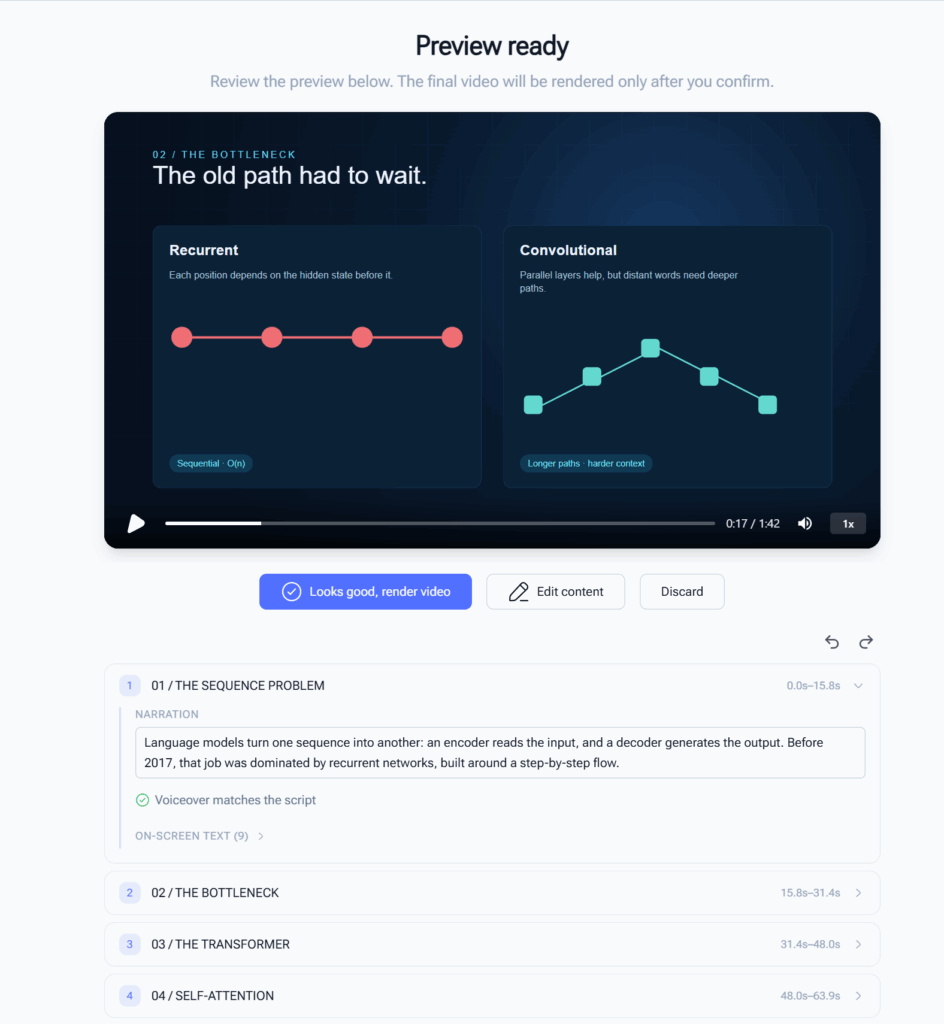
From there you get a live preview you can edit directly, before anything renders. When the preview is right, you render once.
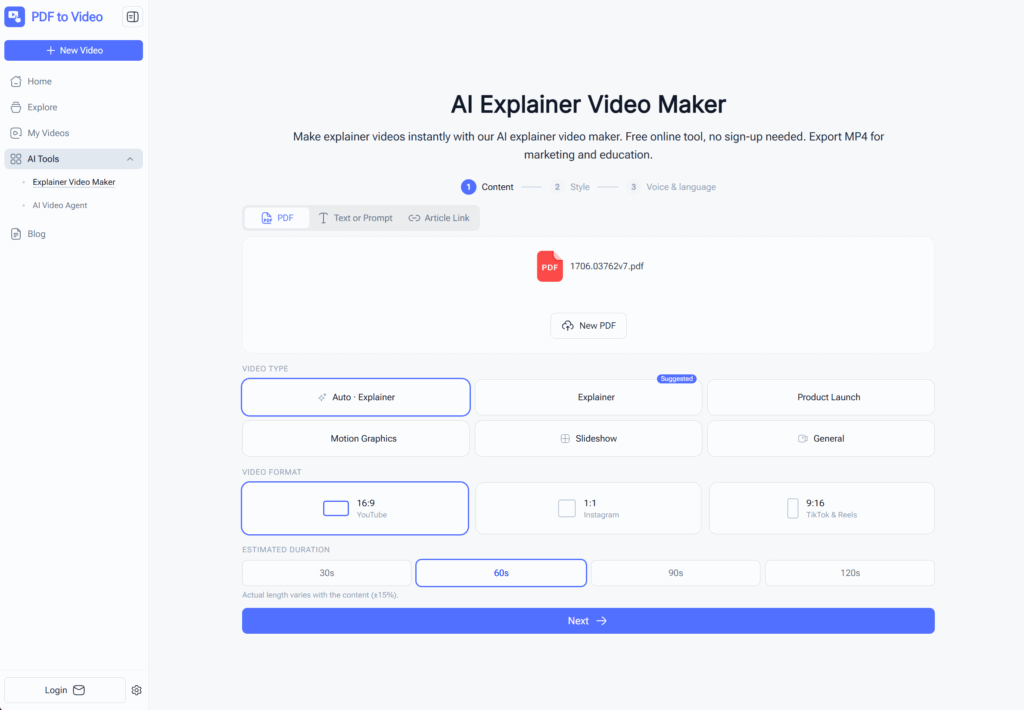
The trade-off is honest: it's more steps than typing a prompt and walking away. If you want a video in one click and it's just for you, Gemini Notebook is free and it's already open in your other tab. This is built for the other case — when the video has your name on it.
[Try it free → AI Explainer Video Maker]
FAQ
Can you edit a NotebookLM video overview after it's generated?
No. There is no script editor, timeline, or scene-level editing for generated video overviews. Your only option is to regenerate the entire video with a revised prompt.
Is Gemini Notebook different from NotebookLM?
No. Google renamed NotebookLM to Gemini Notebook on July 16, 2026. It is the same product with the same features, plus a new logo and some added capabilities. Existing notebooks and shared links carry over automatically.
Can I edit the script before the video is generated?
Not directly. There is no script to edit — you write a custom instruction describing what the video should focus on, and the model writes the narration itself. You're shaping the input, not approving the output.
Why does my video overview contain something that isn't in my document?
Usually a source-parsing issue rather than a model error. Multi-column PDFs get read out of order, tables get flattened, and page headers and footers can be pulled in as body content. Google also notes that generated visuals and voices may contain inaccuracies.
How long does a video overview take to generate?
It varies with source length and format, and Google notes it can exceed 30 minutes. Generation runs in the background, so you can close the notebook and return later.
Can I download and edit the video in another editor?
You can download the MP4 and re-cut or re-caption it, but the narration is baked into the audio. Correcting a spoken error means replacing the voiceover, which usually means starting over elsewhere.
Which languages are supported?
Standard Video Overviews support 80+ languages. The Cinematic format is English-only and requires a Google AI Ultra subscription.
What's the best way to turn a PDF into a video I can actually edit?
Look for a tool that shows you an outline and a script before it renders anything, and lets you change either one without regenerating the whole video. Our AI Explainer Video Maker page walks through that workflow step by step.